

Find your way around
Where to start new work, get back to earlier work, bring data in, point at what you mean, and check your allowance and settings.
Mapstack is one screen built around a conversation. The sidebar on the left gets you to your work. The conversation is in the middle. On the right are the things the session is working with, and whatever you open sits beside the conversation, so you can look at it while you ask about it.
Most work is done by asking. What you click for is getting around, bringing files in, sharing, and running the workspace.
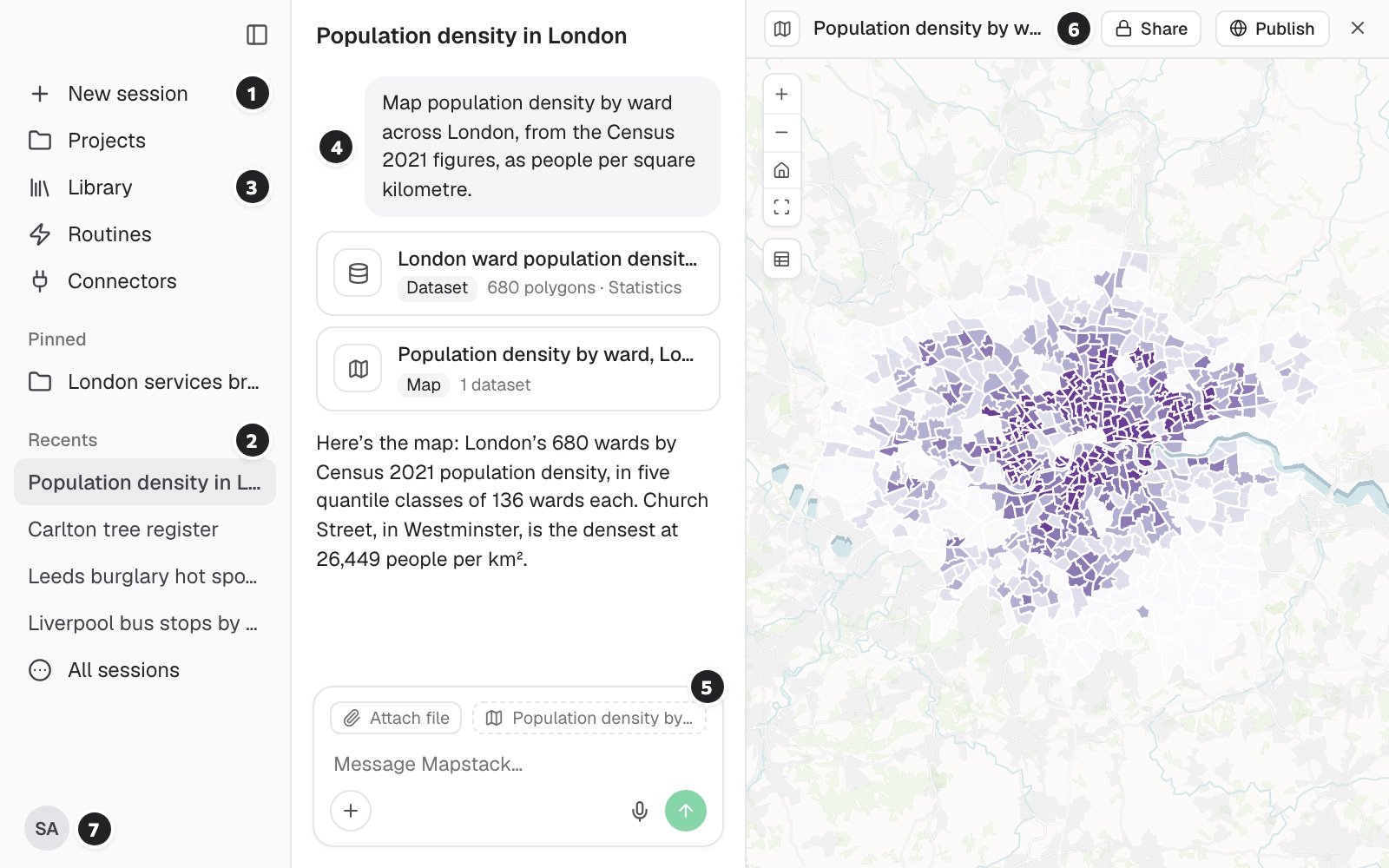 The workspace with a map open beside the conversation, its parts numbered 1 to 7 as in the list below.
- New session starts something new.
- Recents and All sessions get you back to a conversation.
- Library holds everything your workspace has made.
- The conversation: what you asked, and what Mapstack made, ready to open.
- The message box, with Attach file, +, and the name of the open item, which goes with your message.
- The open item, with Version, Share and Publish at the top. Close the item to return to your conversation and see Session details if you left it on.
- Your account bar shows your name. If you have several workspaces, the current one appears underneath. The gear opens Settings.
Start something new
Select New session in the sidebar and say what you want. To start from a file, attach it to that first message. See Start, find and manage sessions.
Get back to earlier work
- A conversation: the sidebar lists recent sessions under Recents. All sessions, at the end of the list, searches them all.
- A map, dataset or anything else made: Library holds everything your workspace has made. See Find your work in the Library.
- A piece of work with several sessions: Projects. See Organise work in projects.
- What you use most: pin a session or a project and it sits under Pinned in the sidebar.
- Maps made before the current Mapstack: Legacy maps at the foot of Settings.
Bring data in
From the message box:
- Attach file (the paperclip) adds files from your computer. You can also drag files onto the message box. They upload straight away and go with your next message.
- +, then Upload from the cloud, picks a file from Google Drive, OneDrive or Dropbox, or connects one of them first.
- +, then Add from library, brings in things your workspace already has.
- Rows copied from a spreadsheet can be pasted into the message box.
See Attach a file.
See what the session is working with
Select Session details (the list icon at the right of the session header). The panel opens beside the chat on a computer or tablet. On a phone it takes the place of the chat. Select the same button to return. Mapstack remembers your choice.
In this session lists everything the session has made or uses. Select an item to open it. The map icon beside Session details reopens the last item you viewed, or the most recently added one. Use Remove from this session in an item's menu to remove it from the list. It stays in your Library. Select Add from library to bring in another item.
Environment shows the workspace and project. If a teammate started the session, their name appears here. A session started by a routine links back to it. Under Published, select Copy link beside a public item to share its address.
Point at the thing you mean
Open a map, dataset or anything else beside the conversation, and it goes with your message: the message box shows its name, and "this map" means that map. Records you have selected in an open dataset go too, and the message box shows how many.
Look at something properly
Fullscreen, at the top of an open item, gives it the whole window; Exit fullscreen brings the conversation back. The same top bar holds the item's Version, Share, Publish and Download, where the item and your seat allow them. Version lists the item's saved versions and brings an earlier one back.
If you close a dataset with edits you have not saved, Mapstack asks whether to Keep editing or Discard & close.
Stop Mapstack part-way
While Mapstack works, the send button becomes Stop. Select it to stop. Send another message to carry on.
Check how much of your allowance is left
Select your picture at the bottom of the sidebar. Usage shows the share used. From 80% used, a meter also shows in the sidebar with the next step for your seat. See Your allowance.
Settings, people and other workspaces
All in the account menu (your picture):
- Settings opens over your work, so you do not lose your place. Routines and Connectors in the sidebar open the same panel.
- In Settings → People, owners and admins can Add people.
- Select the workspace row to switch or choose New workspace.
- Help opens Docs or Contact us. Log out is the last row.
On a phone
Use the navigation button for the sidebar and Session details for the items in this session.
With a Viewer seat
A Viewer seat opens in the Library and sees a shorter sidebar, with no Projects, Routines, Connectors or Pinned. Its Settings gear opens Profile and Appearance. The message box reads "Ask anything about this workspace" and has Add from library but no upload. See Seats and what each can do.
If something does not load
| What you see | What to do |
|---|---|
| "We can't load your workspace" | Select Try again. |
| "Trying again automatically…" | The connection dropped. Wait, or select Refresh page. |
| "Sessions unavailable" under Recents | Your sessions could not be listed. Reload the page. |
| "We couldn't load your sessions" in All sessions | Select Try again. It is a problem on Mapstack's side, not a sign anything is missing. |